Meta Quest guides
Setup and user guides for Meta Quest headsets: how to install, calibrate and use EHS Academy for smooth VR training. Step-by-step instructions and videos help you configure your headset quickly.
EHS Academy from A to Z
YouTube
This video walks you through the complete setup and use of EHS Academy, from launching the app to finishing your first training. Ideal for first-time users who want to get familiar with the interface, controls, and main features.

How to return to the main menu during a lesson
YouTube
This guide explains how to safely exit an ongoing training session and return to the main menu in EHS Academy. You’ll learn how to use the correct hand gesture or the virtual watch to end the current course, switch modules, or restart training, all without leaving the app.
How to restart a lesson in EHS Academy
YouTube
This short guide shows how to restart a lesson from the beginning in EHS Academy. You’ll learn how to use the virtual watch menu to quickly reload the current course and start the simulation again, allowing you to repeat exercises and improve your performance.
How does the hint system work in EHS Academy?
YouTube
This guide explains how the built-in hint system helps you complete each task during training. You’ll learn how to access hints using the virtual watch (by holding the question mark icon) and how visual or voice prompts assist you step by step throughout the simulation.
How to start a lesson in EHS Academy
YouTube
This tutorial shows how to begin a new lesson inside EHS Academy. You’ll learn how to select a training module, choose a participant profile, and start the simulation, following the instructor’s voice guidance step by step through each scenario.
How to switch between the virtual and real environment in EHS Academy
YouTube
This guide explains how to quickly switch between the virtual simulation and your real surroundings using the passthrough feature of Meta Quest headsets. You’ll learn when and how to enable the real-world view for safety or orientation, and how to return to the virtual environment to continue your training seamlessly.
How to select a language in EHS Academy
YouTube
This short guide shows how to change the display and voice language in EHS Academy. You’ll learn where to find the language selection panel on the main screen and how to choose your preferred language to make training more comfortable and accessible.
How to center the view and properly set up the menu in EHS Academy
YouTube
This tutorial explains how to recenter your view and adjust the main menu position in EHS Academy for the best comfort and visibility. You’ll learn how to use the virtual watch (the arrows icon in the settings menu) to align the view and ensure that all interface elements are within easy reach.
How to launch EHS Academy
YouTube
This guide shows how to open and start the EHS Academy application on your Meta Quest headset. You’ll learn where to find the app in the Apps Library, how to launch it, and what to do if the main panel doesn’t appear right away, so you can begin your VR training without any issues.
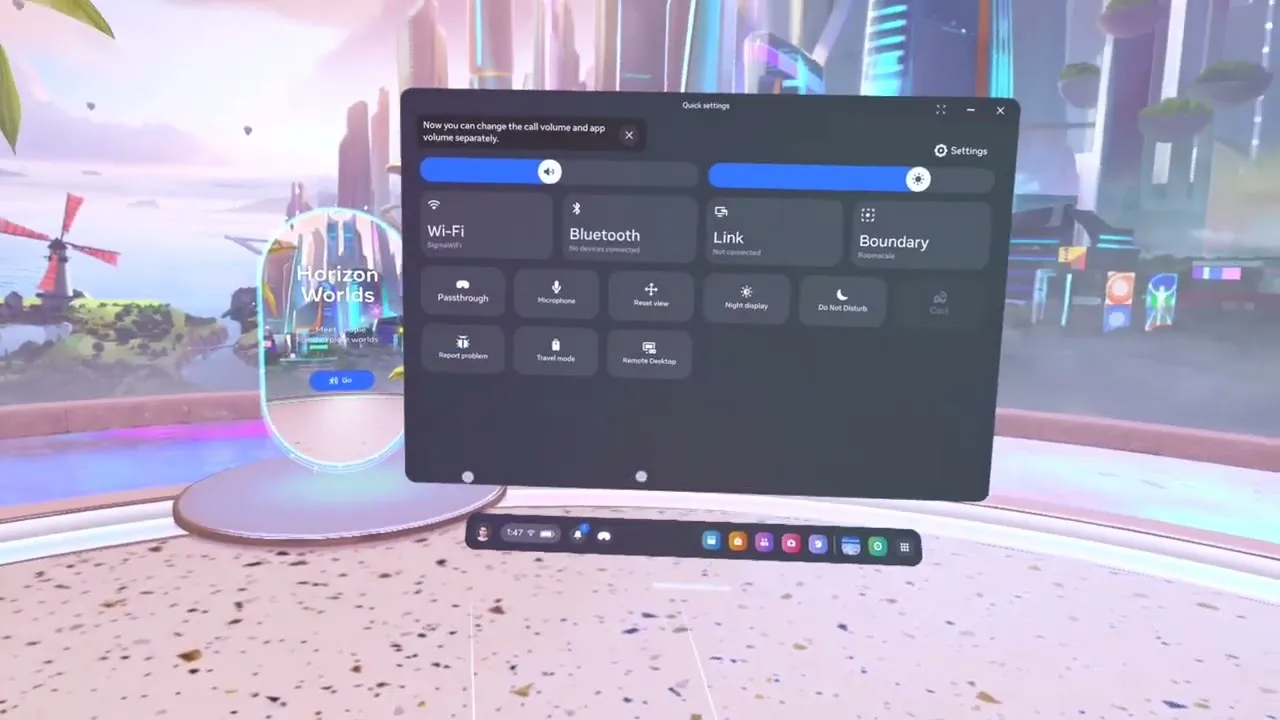
How to set up hand tracking on Meta Quest
YouTube
This guide explains how to enable and use hand tracking on your Meta Quest headset. You’ll learn how to turn the feature on in the Settings → Hands and Controllers menu, how to navigate using your hands, and how to perform gestures such as pinching to select or open the main menu.
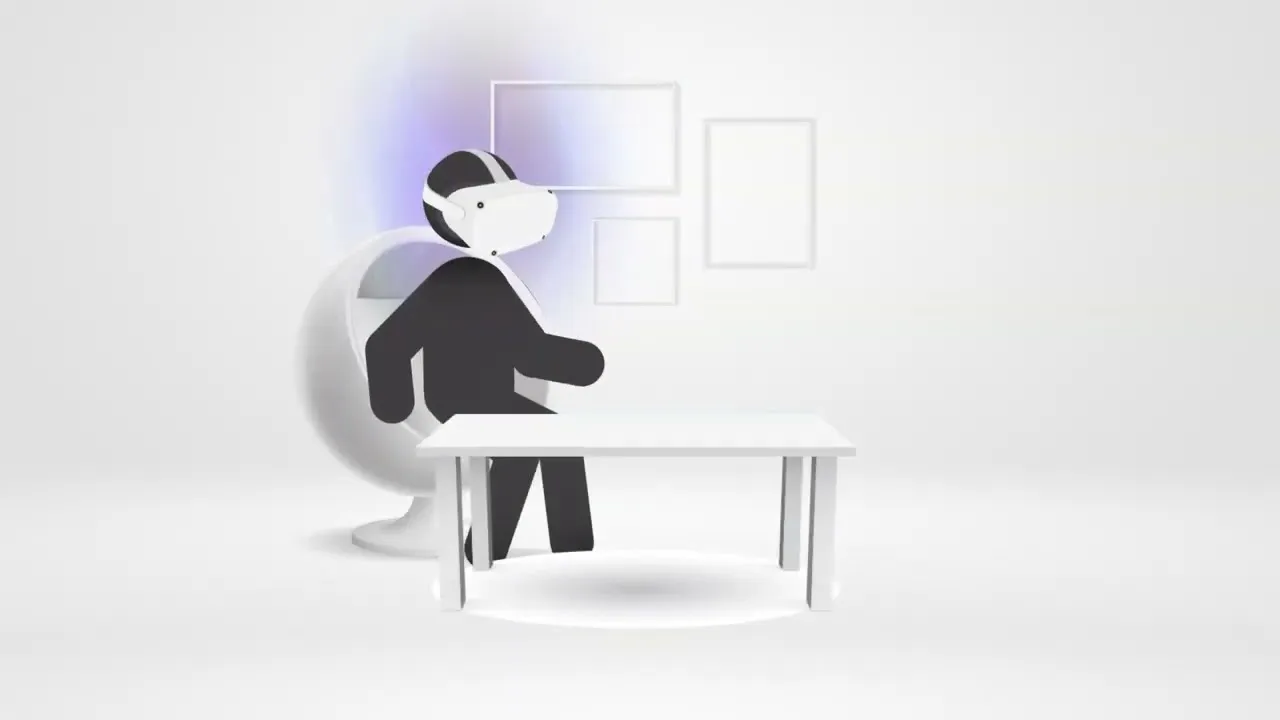
How to report errors in the application
YouTube
This guide explains how to report any technical issues or bugs encountered while using EHS Academy. You’ll learn how to collect basic information about the problem, take screenshots or short recordings if possible, and send them to the EHS VR support team, which helps us quickly resolve the issue and improve the app.

Can I loop a lesson?
YouTube
Yes. EHS Academy lets you to repeat lessons as many times as you like. After finishing a session, you can restart it directly from the main menu or use the Restart Course option on the virtual watch. Learners can keep practicing and repeat scenarios until they master every step.
How to stream video from the Meta Quest headset to a computer
This guide shows how to stream or mirror the view from your Meta Quest headset to a computer screen, which is useful for demonstrations, training sessions, or presentations.
Below are three main methods you can use.
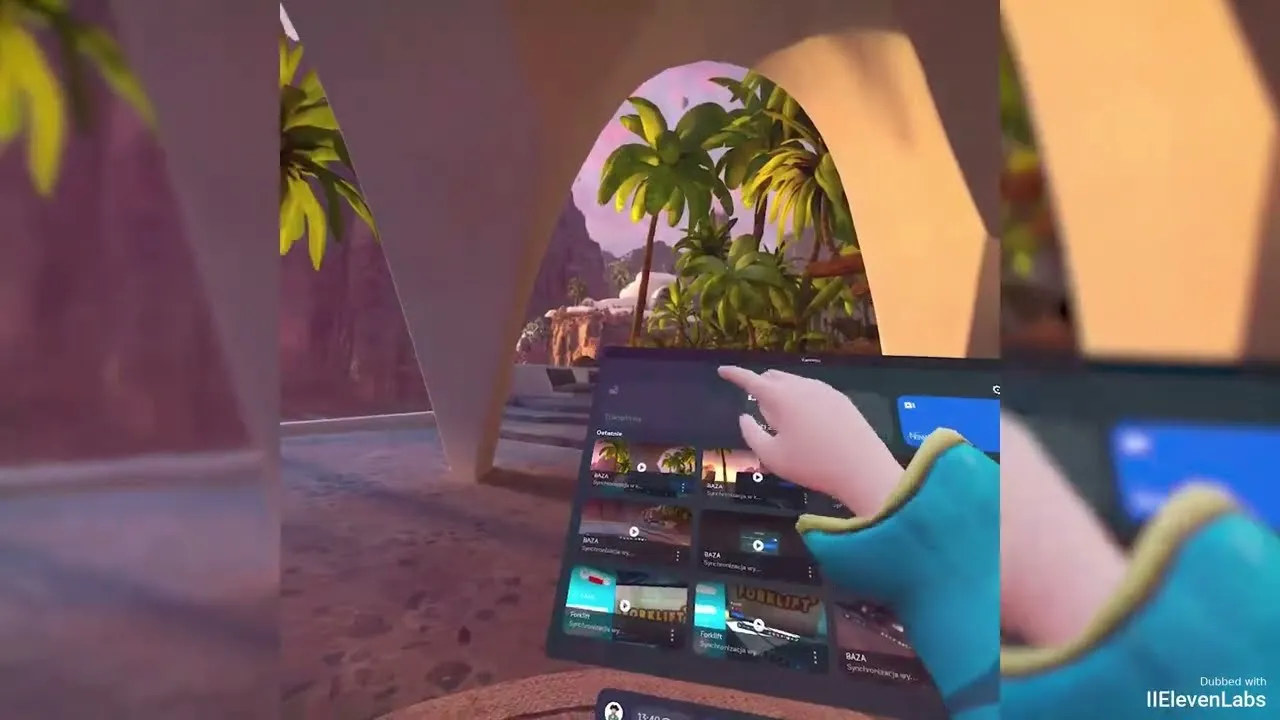
1. Cast to the Meta Quest mobile app (and then share your phone)
This is the quickest way to see what the person in VR is doing and then pass the view on to a computer via screen-sharing (Teams, Zoom, Google Meet, etc.).
What you need
- Meta Quest headset
- Phone with the Meta Quest (Meta Horizon) mobile app installed
- Wi-Fi network shared by the headset and the phone
Steps
- Turn on your Meta Quest and put it on.
- Open the Meta Quest app on your phone and sign in with the same Meta account as on the headset.
- In the app, open the Cast option and select your headset.
- As the target, choose This Phone and confirm casting in the headset.
- To show this on a computer, start a meeting (e.g. Teams/Zoom) on your phone and use screen sharing so everyone can see the VR view.
This method is great for small groups and quick demos when you don’t need full-screen video on a projector or large monitor.
2. Cast directly to a browser tab on your computer (Meta / Oculus Casting)
Here the headset streams directly into a browser window on your computer. You don’t need any extra software: just Chrome or Edge.
What you need
- Meta Quest headset
- Computer with Google Chrome or Microsoft Edge
- Both devices on the same Wi-Fi network
- The same Meta account on headset and in the browser
Steps
- On your computer, open: https://www.oculus.com/casting (this redirects to Meta’s official casting page).
- Sign in with the same Meta account you use on the headset.
- Put on your Meta Quest and press the Meta / Oculus button to open the menu.
- Go to Share (or Camera) → Cast.
- Choose Computer / Browser as the target and confirm.
- After a few seconds the headset view appears in your browser tab. You can then share this tab over Teams, Zoom or on a projector.
This is the recommended method for most training sessions and for classroom or conference demos.
3. Cast via USB cable and “Trust this computer” (advanced / developer tools)
In this method the headset is connected to a computer with a USB-C cable and the video is captured using developer tools or streaming software (for example Meta Quest Developer Hub, SideQuest or scrcpy). This gives more control and can reduce delay, which is useful when you want to record high-quality training videos.
What you need
- Meta Quest headset with Developer Mode enabled
- USB-C cable between headset and computer
- A casting/recording tool on the computer (e.g. Meta Quest Developer Hub)
Steps (generic)
- Enable Developer Mode for your Meta account (in the Meta Quest mobile app).
- Install your preferred tool on the computer (e.g. Meta Quest Developer Hub).
- Connect the headset to the computer with a USB-C cable.
- Put on the headset. You will see a prompt asking whether to allow data access / “Trust this computer”.
- Select Allow.
- In the tool on your computer, start casting / screen capture from the headset.
- Now you can show this window on a monitor, projector, or capture it in OBS for recording.
This option is slightly more technical, but perfect for professional recordings or when Wi-Fi casting is unstable.
Learn more in the official Meta Quest documentation
For the most up-to-date instructions and screenshots from Meta, you can always check the official guide: “Cast to a screen with Meta Quest” in the Meta Quest Help Center: meta.com/help/quest
There you’ll find additional details, supported devices, and any changes introduced in new software versions.
On this page
Questions? We’re here to help
Prefer to talk?
Book a 30-minute online call with our team.
Patryk Gawłowski
Sales and support
+48 577 605 105Mikołaj Basara
Sales and support
+48 530 202 102Łukasz Stachulec
Sales and support
+49 419 180 408-61+48 577 377 844E-mail
office@ehsvr.com